How to Replace Furniture in a Photo with AI
Every furniture purchase is a bet: will that sofa actually work in your room, with your light, next to your rug? Instead of finding out on delivery day, you can replace furniture in a photo of your room with AI and see the answer before you spend anything.
Why preview furniture in your own room?
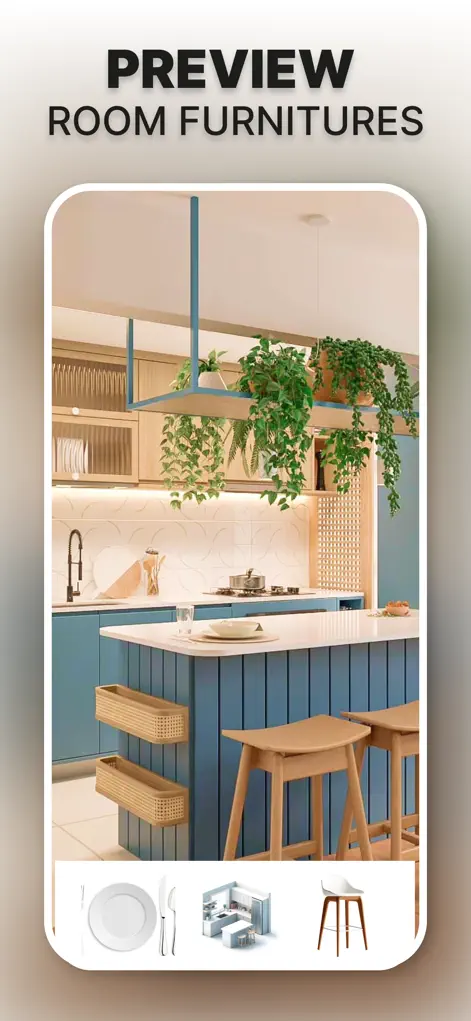
Showrooms and product photos are staged in spaces nothing like yours. Interior AI replaces furniture inside your actual room photo with realistic AI-rendered pieces — scaled to your space, lit by your light. You can select specific furniture assets and build a cohesive layout, which is exactly the judgment call that's impossible to make from a product listing.
Step-by-Step: How to Replace Furniture in a Photo with AI
- Photograph the room as it is. Include the furniture you're thinking of replacing and the space around it.
- Select what to swap. Choose the sofa, bed, table, or decor to replace, then browse furniture options within the app.
- Generate the swap. The AI renders the new piece into your room realistically — correct scale, perspective, and lighting.
- Iterate to a full layout. Swap complementary pieces until the whole arrangement works, then save the design as your shopping reference.
Getting swaps that look like they belong
Swaps work best when the spot is clearly visible: the whole sofa, the floor in front of it, and the wall behind. If the piece is cut off by the edge of the frame or hidden behind a table, the AI has less to go on and the new item can look pasted in. Step back and include the surroundings.
Clear the piece before you shoot. A sofa buried under throws and cushions, or a bed piled with clothes, makes it harder to tell where the object ends.
The rendered piece is a lookalike, not a specific product. It shows the shape, color, and scale of an idea, but it won't match a particular store's sofa exactly and doesn't know what's in stock or what it costs. Use it to decide what kind of piece you want, then shop for real items that match.
Before you order: a quick furniture check
A preview can convince you a sofa looks right; it can't promise it fits. Run through this before paying:
- Measure the space and compare it with the product's listed width, depth, and height.
- Mark the footprint on the floor with painter's tape and walk around it for a day to check the walking room.
- Check the delivery path. Doorways, stairs, and tight hallway turns are where large pieces get stuck.
- See fabric and finish samples in person where you can, since colors vary between screens.
- Keep the saved design on your phone while shopping so you're matching the look you chose, not a showroom's staging.
Try It on Your Own Space
Interior Design AI: Floor Plan is free to download on the App Store. Redesign your first room in under a minute.
⬇ Download Interior AIFrequently Asked Questions
Does the replaced furniture look realistic?
Yes — pieces are rendered with correct scale, perspective, and lighting for your specific room photo.
Can I try several sofas in the same spot?
Yes, generate as many variations as you like and compare them side by side.
Can I remove furniture to see the room emptier?
You can redesign toward sparser layouts — useful for decluttering decisions and for staging.